IMPORTANT: The Definitions tab displays if ESG Reporting Manager is enabled. See Extensions.
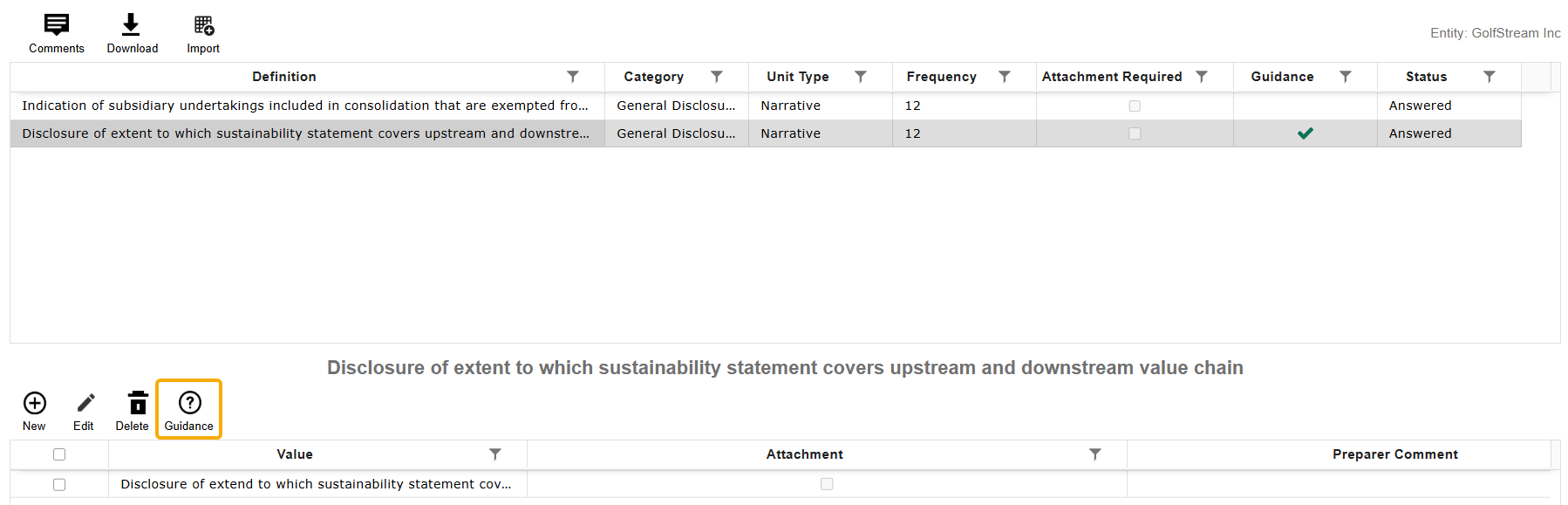
This tab displays a grid of all Definitions assigned to the Profile that require either a narrative or value entry. The entity assigned to the Profile displays above the definitions grid.

Some Definitions have regulation guidance available for you to view. If there is a checkmark in the Guidance column for a selected Definition, the Guidance button displays. Select the Guidance button to display the Information slide-out panel for the Definition.
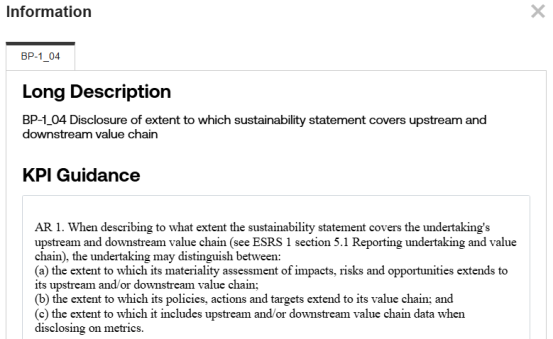
NOTE: If the Definition is associated with multiple guidance records, multiple tabs display in the slide-out panel.
Definition Data Entry
To enter data for a Definition, complete the following steps:
-
Select a Definition from the grid.
-
Select the New button to add an entry.
-
In the slide-out panel, enter all data for the Definition.
-
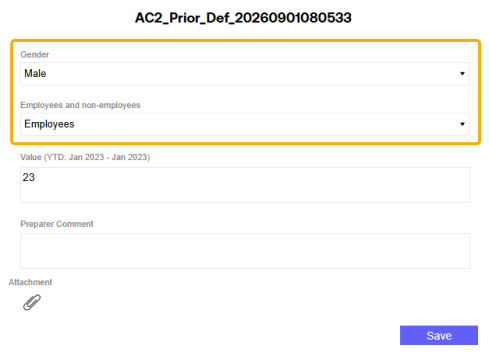
If Control Lists are assigned to the Definition, there will be drop-down menus with the titles of the Control Lists. You can assign a maximum of four Control Lists to a definition. Make Control List member selections from the available drop-down menus to enter data for that selection. See Control Lists.
Control List drop-down menus do not display if none are assigned to the Definition. You must create a new entry for every Control List member you are entering data for.
-
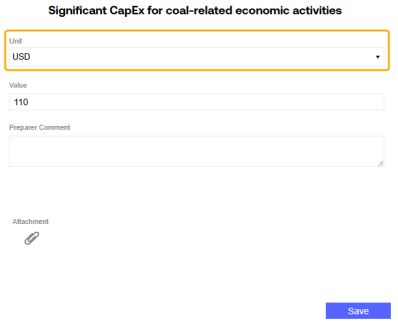
If the Definition unit type requires a unit selection, from the Unit drop-down menu, select a unit. If the Definition unit type does not require a unit selection, the Unit drop-down menu does not display. The following Definition unit types require a unit selection: area, data, distance, energy, time, volume, weight, and monetary.
-
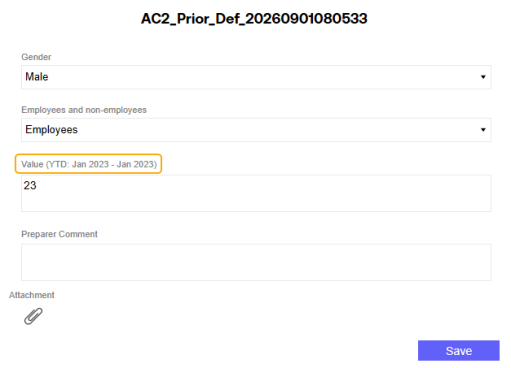
In the Value field, enter a value for the entry. You cannot enter a numeric value exceeding 7.9228 x 1028.
For Definitions with a Narrative unit type, this field displays as a text box. The text box supports line breaking and rich text formatting. The rich text formatting is displayed on the report for narrative entries. If the narrative entry is set to display in a table, then the rich text formatting is not applied. Narrative entries display in a table if the Definition has any of the following applied: Control Lists, Baseline, Prior Year, or Milestone Year.
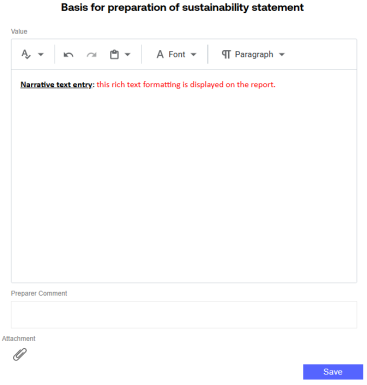
NOTE: If there are multiple entries for a Definition with narrative, average, date, or percentage input types, the most recent entry will be used in the report. This is regardless of the workflow period the narrative is entered for.
If the input basis assigned to the Definition is periodic, the Value field indicator displays the current workflow time. If the input basis is YTD, the Value field indicator displays a range from the current workflow starting period to the current workflow time.
-
Add an attachment or preparer comment if required. If a preparer comment is required for the Definition, the entry cannot be saved until the comment is added. See Attachments and Comments
-
-
When you finish entering data for the Definition, click the Save button.
NOTE: Multiple entries for a Definition will aggregate on the report if the Definition has a numeric input type and if there are no Control Lists, baseline years, or milestone years assigned to the Definition.
If the Definition you are entering data for has the Baseline, Prior Year, or Milestones options selected on the Definitions page, the entry grid has additional columns to display data.

| Column | Description |
|---|---|
| Baseline | Users must enter their baseline year, prior year, and target year data on the Home page in the Workflow Profile for the appropriate year and scenario. The columns populate based on this data entry. If there is no data provided for the baseline year, prior year, or milestone scenarios selected in Global Options, the corresponding columns will be blank. |
| Prior | |
|
Target |
|
| N | This column displays the value for the current year. |
| N-(N-1) | This column displays the variance between the Current year (N) and the Prior year (N-1). |
| % N/(N-1) | This column displays the percent change between the Current year (N) and the Prior year (N-1). |
Definition Data Audit
The Audit tab enables you to view all changes made to the selected entry. The tab displays all historical entries made, the user who made the entry, and the timestamp for the entry. The grid lists entries from newest to oldest.

